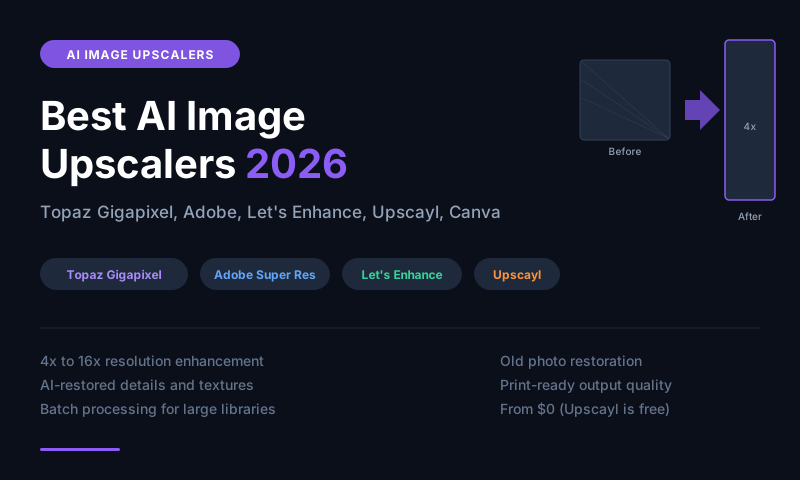
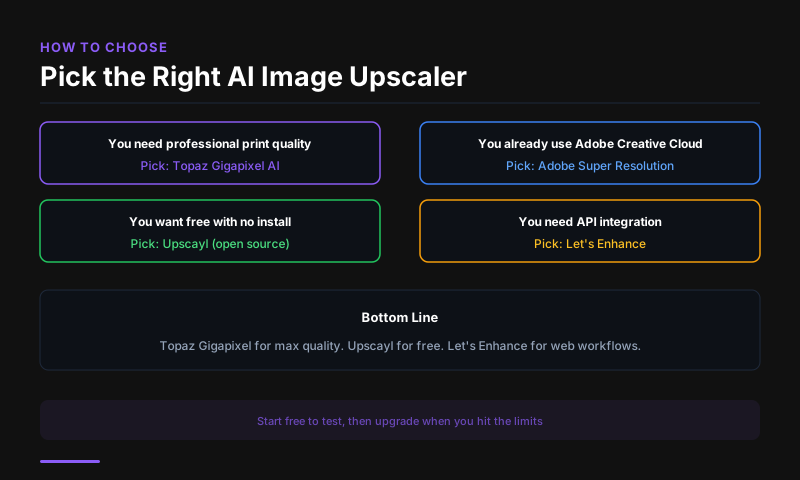
Topaz Gigapixel AI is the best AI image upscaler for photography -- it consistently produces the sharpest, most detailed results. Adobe Super Resolution (in Lightroom) is the best for photographers already on Adobe. Let's Enhance is the best web-based option with no software to install. Upscayl is the best free and open-source tool. Canva AI Upscaler is the best for quick social media image resizing.
How AI Upscaling Works
Traditional upscaling stretches pixels and produces blurry results. AI upscaling uses neural networks trained on millions of images to predict and generate the detail that should exist at a higher resolution. The result is an upscaled image that looks sharper and more detailed than the original, rather than just larger and blurrier. For photographers, e-commerce sellers, and print designers, this makes previously unusable low-resolution images viable.
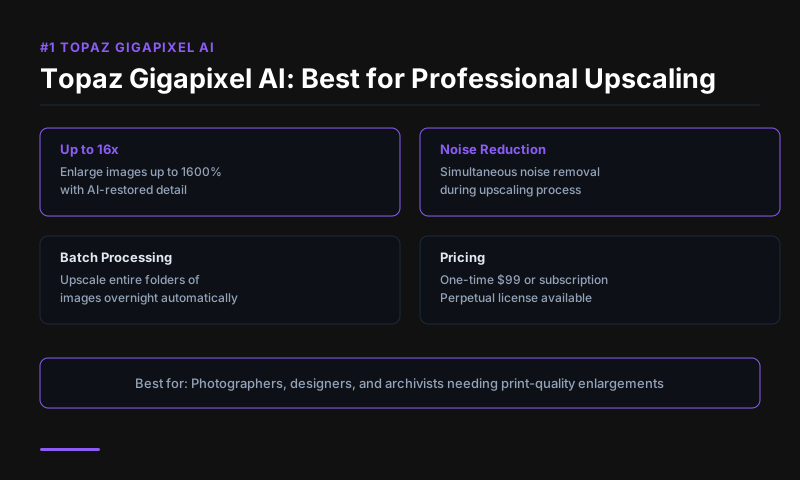
#1 Topaz Gigapixel AI -- Best Quality
Price: $99/year | $199 one-time purchase
Topaz Gigapixel AI produces the best upscaling results available. It uses a specialized neural network trained exclusively on high-resolution photography to recover fine detail -- individual hair strands, fabric textures, architectural edges -- that competing tools blur or hallucinate. Upscaling factors up to 6x (and 16x with the experimental setting) produce results indistinguishable from native high-resolution captures in many cases.
The Face Recovery AI feature specifically targets portrait photos -- detecting faces at low resolution and reconstructing facial detail at the upscaled size. For wedding, portrait, and event photographers recovering old or low-resolution images, this feature alone justifies the price.
Best for: Professional photographers, print design, portrait recovery Platform: Windows, Mac desktop app
#2 Adobe Super Resolution -- Best for Lightroom Users
Price: Included in Adobe Lightroom ($9.99/month)
Adobe Super Resolution (available in Lightroom Classic and Camera Raw) doubles the linear resolution of any image using AI -- turning a 12MP shot into a 48MP file. The upscaling quality is excellent for photographic content and integrates seamlessly into the Lightroom editing workflow. Process an image, upscale, then continue editing -- no export to another app required.
For photographers who shoot in RAW format, Super Resolution processes the RAW data directly rather than a compressed JPEG, producing higher-quality results than tools that work from exported files.
Best for: Photographers on Adobe Lightroom, RAW file upscaling Access: Lightroom Classic, Camera Raw, Lightroom cloud
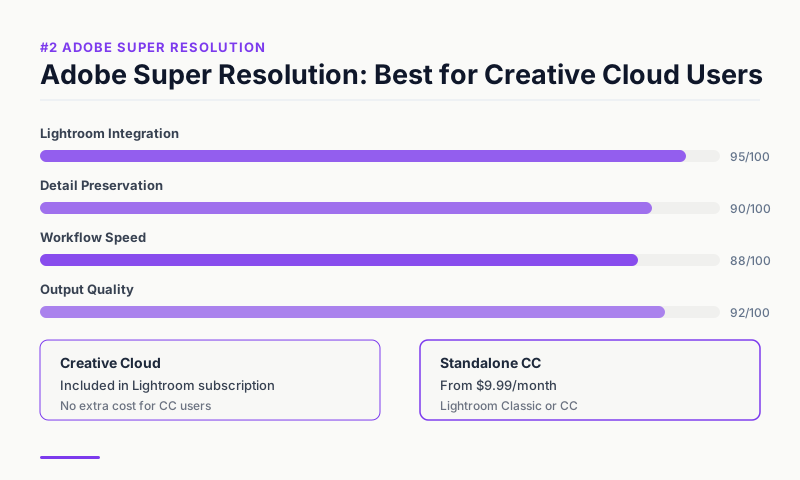
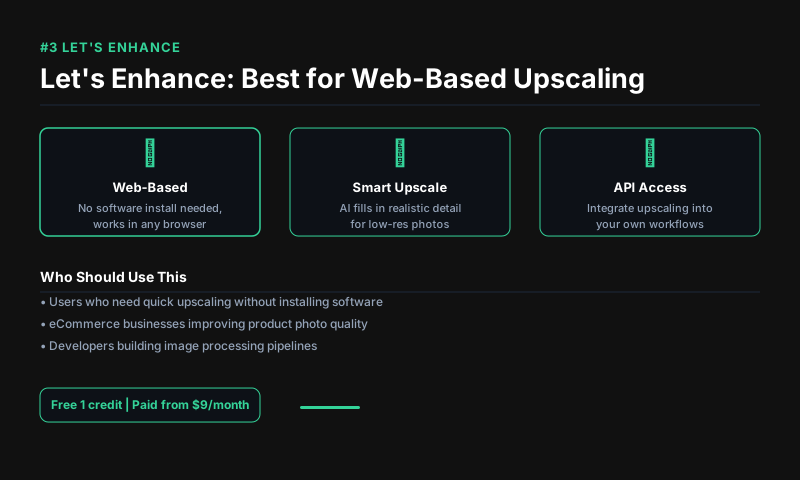
#3 Let's Enhance -- Best Web-Based Option
Price: Free (10 credits) | $12/month Starter | $24/month Pro
Let's Enhance is a browser-based AI upscaler -- no software download required. Upload an image, select upscaling level (2x, 4x, 8x, 16x), and download the enhanced result. The AI models are specialized for different content types: Photo Upscale for photography, Illustration for graphics and art, and Smart Enhance for a combination of upscaling and enhancement.
The Magic Enhance preset automatically applies both upscaling and AI enhancement (noise removal, detail recovery) in one pass. For occasional users who do not want to install desktop software, Let's Enhance's web interface covers most use cases.
Best for: Casual users, occasional upscaling, no-install web workflow Free plan: 10 credits on signup
#4 Upscayl -- Best Free and Open-Source
Price: Free (open source)
Upscayl is a completely free, open-source AI image upscaler that runs locally on your device. It uses multiple AI models (Real-ESRGAN, UltraMix, Remacri) and processes images entirely offline -- no upload to an external server, no subscription. For privacy-sensitive images or high-volume processing, Upscayl's local processing model is a significant advantage.
The quality is strong for a free tool -- comparable to the lower tiers of paid tools for standard photography and graphics. The interface is simple: drag in an image, choose a model and scale, download the result.
Best for: Privacy-conscious users, high-volume processing, budget users Privacy: Fully local processing, no data uploaded
#5 Canva AI Upscaler -- Best for Quick Social Media Use
Price: Included in Canva Pro ($15/month)
Canva's Magic Expand and AI upscaling features are built into the canvas editor, making them the most convenient option for social media managers and designers who already work in Canva. Upscale a design and immediately resize it for different social platforms using Magic Resize, all in one workflow. The quality on graphics and illustration is solid; on detailed photography it is competitive but not a match for Topaz.
For marketers and social media teams whose upscaling needs are primarily design-related rather than photography-focused, Canva Pro's built-in tools eliminate the need for a separate upscaling tool entirely.
Best for: Social media managers, marketers, Canva users Access: Canva Pro subscription required
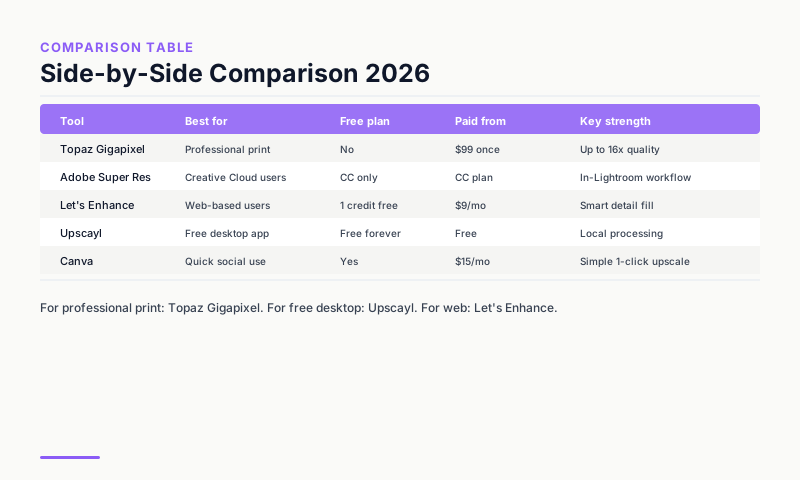
Comparison Table
| Tool | Best for | Free option | Cost | Quality |
|---|---|---|---|---|
| Topaz Gigapixel AI | Professional photography | No | $99/year | Best |
| Adobe Super Resolution | Lightroom workflow | No | $9.99/month (LR) | Excellent |
| Let's Enhance | Web-based use | 10 credits | $12/month | Very good |
| Upscayl | Free/open-source | Yes (fully free) | Free | Good |
| Canva AI | Social media/design | No | $15/month | Good for graphics |
When Do You Need AI Upscaling?
Common use cases: printing a web-resolution image at large format, recovering old low-resolution photos, enlarging product photos for e-commerce, improving AI-generated images before print, and restoring damaged or compressed archival images. If the output will be seen at full size by a discerning audience, use Topaz. For everything else, Let's Enhance or Upscayl cover the need at lower cost.
FAQs
What is the best free AI image upscaler? Upscayl is the best completely free option -- it is open-source, runs locally, and produces strong results. Let's Enhance's 10 free credits on signup are sufficient for occasional use.
Can AI upscaling make a blurry photo sharp? AI upscaling recovers detail from low-resolution images but cannot create sharpness from motion blur or focus blur. If the original subject is blurry due to camera movement or out-of-focus capture, upscaling enlarges the blur without fixing it.
How much can you upscale an image with AI? Topaz Gigapixel supports up to 6x standard and 16x experimental. Let's Enhance supports 16x. In practice, 4x upscaling from a reasonable source image produces the best results -- above 6x, hallucinated detail begins to appear in most tools.
This article contains affiliate links. I may earn a commission at no extra cost to you.